
Portrait Atelier

 Before
With preset
Before
With preset
Drag across the photograph or use the slider below.
Before: Camera Neutral profile, As Shot white balance and exposure 0. After: Open Shade Soft. The same RAW file and crop.
The face comes first. Follow the light.
20 portrait looks, 10 AI masking presets and 10 tools. Choices for soft window light, open shade, hard sun and defined black and white.
Price39,00 €
- Contents
- 20 looks · 10 AI masking presets · 10 tools
- Files
- 40 XMP files in a ZIP archive
- Intended workflow
- Nikon Z8 NEF RAW · Lightroom desktop Windows
- Profile
- Looks preserve the profile; the separate RAW Base sets Camera Neutral
- Classic / Mobile
- XMP import; pack results not separately checked
- Guide
- Estonian and English
- Licence
- Single user; editing your own and client photographs
- Sample photographs
- Not included
Before and after
The same photograph before the preset and after editing. Move the divider to compare.
Hard Sun Control · Hard midday sun

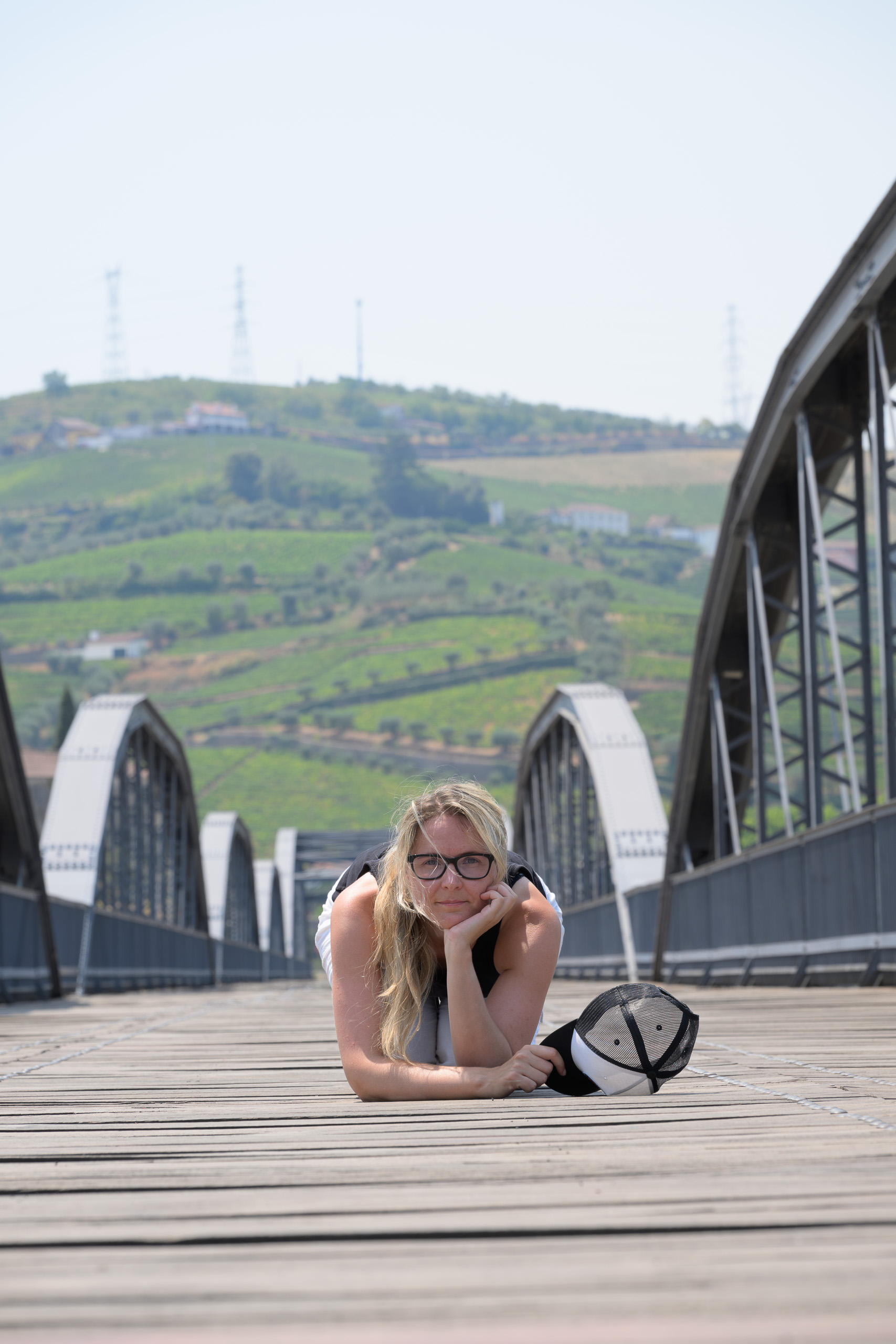 Before
With preset
Before
With preset
Drag across the photograph or use the slider below.
Before: Camera Neutral profile, As Shot white balance and exposure 0. After: Hard Sun Control. The same RAW file and crop.
Golden Hour Skin · Low warm sidelight

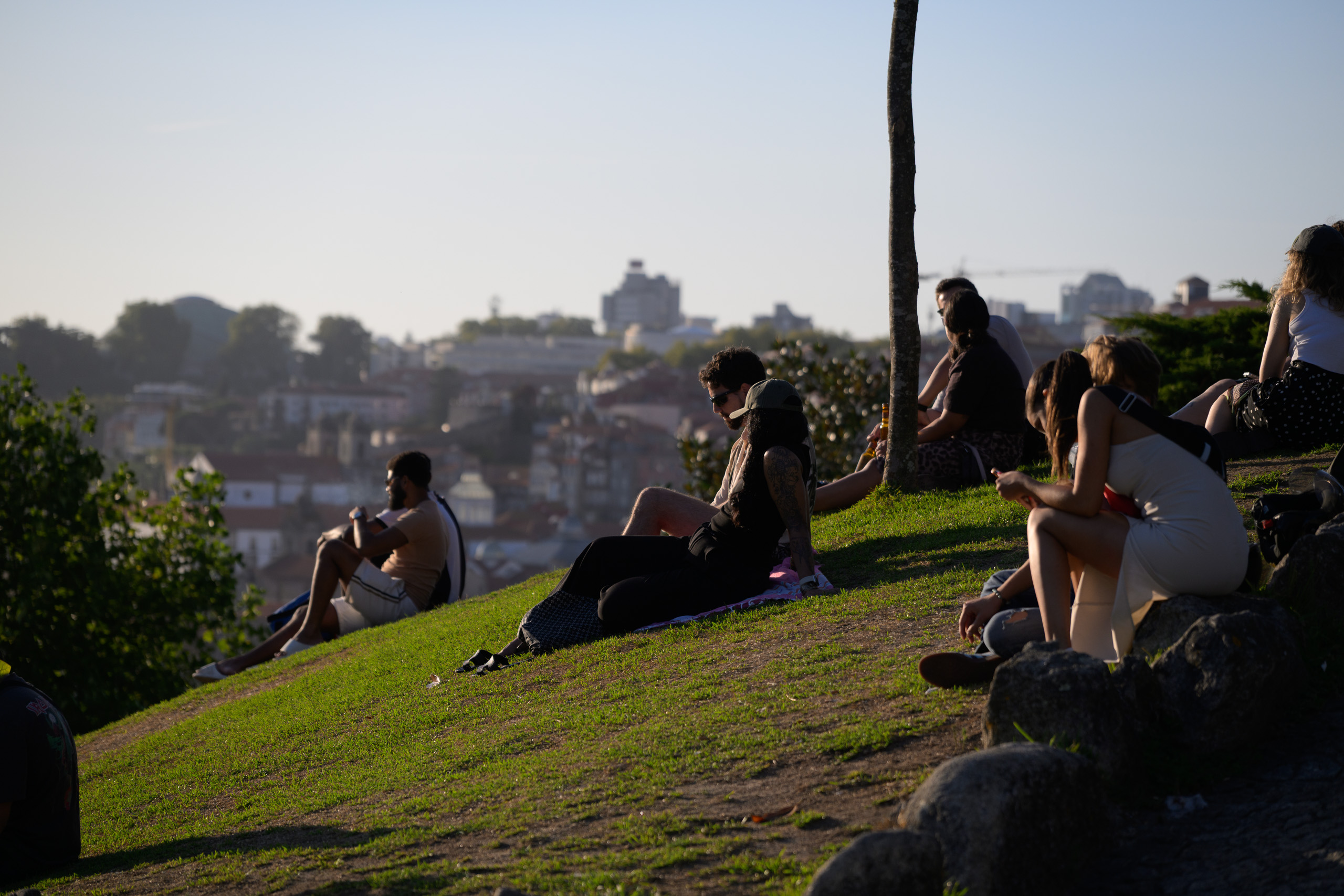 Before
With preset
Before
With preset
Drag across the photograph or use the slider below.
Before: Camera Neutral profile, As Shot white balance and exposure 0. After: Golden Hour Skin. The same RAW file and crop.
The collection
A portrait treatment starts with the face and the way light falls across it. Portrait Atelier brings together soft, more neutral and stronger looks, giving you a starting direction before the final local adjustments.
Choosing a direction
Natural Window Light offers a softer starting point for portraits beside a window. Open Shade Soft gives cool shade a warmer, creamy orange tone. Hard Sun Control adjusts highlights and shadows in direct sunlight, while Golden Hour Skin strengthens warm evening light towards amber-orange. Classic Studio B&W shifts attention from colour to form.
Inside the pack
20 looks · 10 AI masking presets · 10 tools.
XMP presets in a ZIP archive, with an Estonian and English guide and a usage licence. Sample photographs are not included.
Working with the pack
Choose one look, adjust exposure and white balance, then use a subject or background tool if needed. Skin Soft, Hair Light and White Outfit Rescue act on Lightroom’s whole detected subject. Their names do not mean separate skin, hair or clothing masks.
The presets leave whole-image exposure and white balance to you. Tools replace the settings stored within them; they are not separate layers. Check sharpening and optics after applying a look, as some files also change those settings.
Before choosing
The pack does not replace skin retouching or automatically correct every skin tone. Check masks and skin texture at 100%. Strong mixed light or coloured light on the face needs separate attention.
The look presets keep your selected profile. The separate RAW Neutral Base sets Camera Neutral and camera-specific technical settings. That base is intended for Nikon Z8 RAW files.
AI masking presets require the app to calculate the relevant selection. Check its result and edges on each photograph; a mask may select a larger or smaller area than expected.
Before you buy
Do the AI tools select only skin or hair?
No. The subject tools use Lightroom’s Subject selection and can also affect clothing and other parts of the person. Check the selected mask and image detail on each photograph.
Can I use the pack in Lightroom, Classic and on my phone?
The files use XMP, which Lightroom and Lightroom Classic can import. Lightroom Mobile supports direct XMP import or syncing from Lightroom desktop with the same Adobe account and a suitable subscription. This pack’s results have not been checked separately in Classic or mobile.
Can I use ordinary phone photographs?
This edition is prepared primarily for a Nikon Z8 NEF RAW workflow. Opening it in a mobile app does not automatically establish JPEG or HEIC compatibility. Camera profiles, source files and app capabilities affect the result; phone-photo and HDR workflows have not been confirmed.
How do I install the presets?
Extract the ZIP and import the XMP files through your Lightroom application’s Presets menu. In Lightroom desktop, use File → Import Profiles & Presets. The included guide covers Classic and mobile steps. A precise minimum application version has not been confirmed for this edition.
Can I use these presets on client photographs?
Yes. The single-user licence allows editing your own and your clients’ photographs, including paid work. You may not redistribute or resell the preset files themselves. Full terms are included in the licence and the shop’s sale terms.